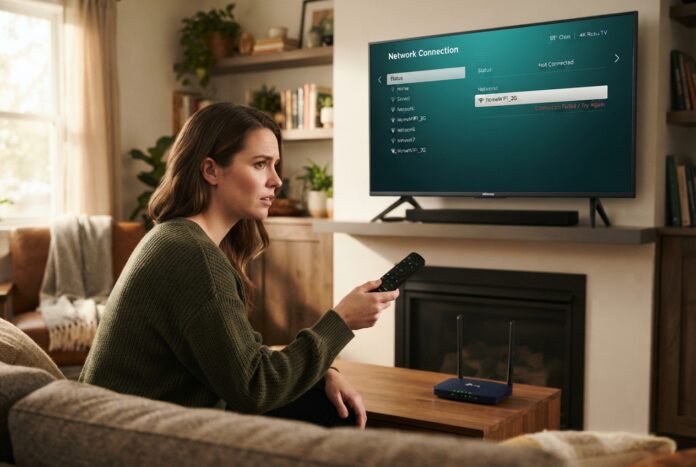

Your Hisense TV worked yesterday, but now it won’t connect. Perhaps your network has disappeared, the password keeps getting rejected, or the connection drops whenever you start watching something.
For a Hisense TV not connecting to Wi-Fi, start by checking whether another device can use the same network. Then restart the TV and, if needed, the router. Reconnect through the TV’s network settings before moving to further checks.
The next step depends on where the connection fails. A missing network needs a different approach from a TV that connects to Wi-Fi but has no internet. You usually don’t need to begin with a factory reset.
Short Definition / Direct Answer
Start by checking another device on the same Wi-Fi, restarting your Hisense TV, and reconnecting to the network. Then follow checks for your specific error before considering updates, resets, or support.
Practical Tech Tip
Your phone loading a webpage doesn’t always mean your home Wi-Fi is working—it may be using mobile data. Turn mobile data off briefly and test the same network near your TV. A successful phone test helps narrow the problem, but it doesn’t rule out every router or TV compatibility issue.
DailyTechSift Mission Statement
DailyTechSift helps you understand technology, choose useful devices and software, and solve everyday tech problems. We offer clear, practical guidance so you can make informed digital decisions that fit your needs and budget.
Start With These Quick Checks
First, confirm that you’re selecting your own Wi-Fi network. Similar names can make it easy to choose a neighbor’s network or an old guest network.
Next, connect your phone to that same network and open a new webpage. Temporarily turn off mobile data so the phone cannot quietly use it instead.
- Your phone also has no internet: Check your router and internet service before changing TV settings.
- Your phone works normally: Continue with the TV checks. This narrows the problem, although it doesn’t rule out every router issue.
Restart the TV fully. Pressing the remote’s power button may only put it into standby. Use a restart option if available, or turn the TV off, unplug it briefly, then reconnect it. Don’t disconnect power while an update is installing.
Restart the router if other devices are struggling or the TV still won’t connect. This temporarily interrupts everyone using that network. Wait until the router’s normal connection indicators return before trying again.
Use the router’s power connection to restart it. Don’t press its recessed reset button, which may erase its settings.
Once the network is available, test the TV again before changing anything else.
Identify Your TV System and Connection Problem
Hisense TVs don’t all use the same software. Your TV may run Roku TV, Google TV, Android TV, Fire TV, or VIDAA. Instructions for one system may not match another.
Look for the system name on the home screen or in the TV’s information settings. You can also find the model number on its label or in its documentation. Don’t move a large wall-mounted TV just to reach a label if the information is available onscreen.
Then match your problem to one of these descriptions:
| What happens | What to investigate next |
| Your network doesn’t appear | Network visibility, signal, and supported Wi-Fi bands |
| The TV rejects the connection or password | Network selection, credentials, and compatibility |
| The connection attempt times out | Signal, router response, and connection setup |
| The TV says “connected, no internet” | Internet access beyond the Wi-Fi connection |
| The connection works, then drops | Signal conditions, recurring network problems, or standby behavior |
Write down any error message exactly as it appears. “Wrong password” and “no internet” are different clues, even though both stop you from streaming.
Reconnect Your Hisense TV to Wi-Fi
Open the TV’s settings and look for its network or internet connection options. The wording depends on the operating system and software version.
Select your home network and check the password carefully. Wi-Fi passwords are case-sensitive. Similar characters, such as a capital “O” and the number “0,” can also cause mistakes.
The password printed on your router only works if that password hasn’t been changed. You need the Wi-Fi password, not the password used to manage the router or sign in to a streaming service.
If your TV offers a Forget network option, remove the saved connection and reconnect. Have the current password ready first. Don’t choose a factory reset simply because you cannot find a forget option.
After reconnecting, give the TV a chance to complete the connection check. Then open an app and try playing something.
If only one app fails while others work, investigate that app separately. A single streaming error does not establish that the TV has lost Wi-Fi.
Follow the Fixes for Your Connection Problem
Choose the section that matches your screen. There’s no benefit in repeating every check when you already know which stage is failing.
Your TV Can’t Find the Wi-Fi Network
Check whether your phone can see the network while you stand near the TV. A phone finding it doesn’t guarantee the TV will, but it helps establish whether the network is visible in that location.
If the router is far away or behind substantial walls, try improving its position where practical. Avoid placing it inside a closed cabinet or directly behind large metal objects.
Next, check the Wi-Fi bands supported by your exact TV model. 2.4 GHz and 5 GHz are different Wi-Fi frequency bands. Don’t assume support based only on the TV’s age, price, or screen size.
If your router already provides separate network names for those bands, try one supported by the TV. A combined network name is not automatically a problem, and you don’t need to split it as your first step.
For a deliberately hidden network, you may need to enter its name manually if the TV supports that setup.
The Password Is Correct, but the Connection Fails
First, confirm that the password works for the exact network you selected. Guest networks and similarly named networks may use different passwords.
Remove the saved connection if that option is available, then enter the current details again. This is especially useful after someone changes the home Wi-Fi password.
If the problem remains, check whether the router has paused or blocked the TV. Some home-network controls restrict individual devices even while other devices work.
A router security setting can also affect compatibility. Compare the TV’s requirements with the router’s documentation before changing it. Don’t remove the Wi-Fi password or make the network open to get the TV connected.
If you don’t manage the router, ask the person who does to check those settings.
The Wi-Fi Connection Keeps Timing Out
A timeout means the connection attempt did not finish within the expected period. It does not, by itself, identify the cause.
Notice when it happens: immediately after selecting the network, after entering the password, or during the internet check. That detail can help you choose the next test.
After restarting the devices, retry with the router closer if practical. Pause simultaneous settings changes so you can tell whether one adjustment helps.
If the timeout continues, move to the hotspot test below. Trying a separate network can provide more useful information than repeatedly entering the same password.
The TV Says “Connected, No Internet”
This message means the TV has joined the wireless network but cannot confirm usable internet access.
Check another device on the same Wi-Fi with mobile data turned off. If it also fails, investigate the router’s internet connection or a possible service outage.
If other devices work, check whether the TV is restricted by parental controls, a paused-device setting, or network access rules.
Hotel, dorm, and other shared networks may require a separate sign-in webpage. That additional step can complicate TV connections. Ask the network operator about its supported TV setup instead of repeatedly resetting the television.
Avoid changing DNS or entering a manual IP address without a clear reason. Those settings address particular network problems; they are not general fixes for every connection error.
The TV Keeps Disconnecting or Won’t Reconnect Automatically
Look for a pattern. Does the connection disappear during playback, after the TV wakes from standby, or at the same time other devices lose service?
A phone working beside the router does not show how reliable the connection is beside the TV. Check conditions in the room where the TV sits.
Note any recent changes, such as a replacement router, new network name, moved equipment, or changed Wi-Fi password.
If the failure only happens after standby, record that detail. You can then check for relevant software updates and give support a more precise description.
A problem beginning after an update is worth investigating, but timing alone does not prove that the update caused it.
Narrow Down the Problem With Another Connection
A second connection can help separate a home-network issue from a broader TV problem. Change one thing at a time, and treat the result as a clue rather than a final diagnosis.
Try a Phone Hotspot if One Is Available
A phone hotspot shares a phone’s mobile internet connection over Wi-Fi. Check that your mobile plan permits it and that you have data available.
Enable the hotspot, place the phone near the TV, and try connecting the TV to its network. If the phone offers a compatibility option, consult its instructions and the TV’s supported bands.
Keep the test short. Streaming video or downloading an update can use substantial mobile data.
- The TV connects and gets internet: Focus next on your home router, its settings, or the signal between it and the TV.
- The TV cannot connect: Check that the hotspot itself is compatible and working before drawing conclusions about the television.
A successful hotspot test does not prove that every part of the TV’s wireless connection works perfectly. It does show that the TV can connect under those test conditions.
Turn the hotspot off afterward and reconnect the TV to your home network when ready.
Try Ethernet if Your TV Supports It
Ethernet uses a cable between the TV and router. Check whether your TV has a suitable network port before buying a cable or adapter.
Connect an Ethernet cable to an available router network port and check the TV’s wired connection status. Keep the cable away from walkways.
If internet access works over Ethernet, you have a useful temporary connection and a reason to investigate the wireless path more closely.
That result does not prove the TV’s Wi-Fi hardware is faulty. Signal, router settings, and wireless compatibility still need consideration.
If both wired and wireless access fail, use the other-device checks to decide whether the problem extends beyond the TV.
Check for Updates Before Considering a Reset
Software updates may address relevant problems, but an update should come from the correct official source. A factory reset belongs later in the process because it can remove settings without fixing an underlying network issue.
Check Official Updates for Your Exact Model
Use the TV’s built-in update feature when it has a working internet connection.
If Wi-Fi is unavailable but Ethernet works, that connection may let you access the normal update feature. For offline update options, consult Hisense’s instructions for the exact model and region.
Don’t download firmware from an unofficial repair page or install a file intended for a similar-looking TV. Avoid attempting a downgrade unless official support provides a supported procedure.
Once an update begins, follow the onscreen instructions and keep power connected. Test the network again after the process finishes.
If the connection problem started immediately after an update, record the installed software version for support.
Understand Network Reset and Factory Reset
A network reset, where available, removes or restores connection settings. Its exact effects depend on the TV system.
A factory reset is broader. It can remove saved networks, account sign-ins, installed apps, and personal settings, returning the TV to its setup process.
Before resetting:
- Have your Wi-Fi password and relevant account sign-in details ready.
- Record picture, sound, accessibility, or other settings you want to restore.
- Read the reset screen to see what will be removed.
- Confirm the procedure for your exact TV system.
Use the narrower reset option first when official guidance supports it. Consider a factory reset only after useful checks have failed and you understand the consequences.
If you have already completed one factory reset without improvement, repeating it is unlikely to provide much new diagnostic information.
When to Contact Your Internet Provider or Hisense Support
Contact your internet provider when multiple devices cannot access the internet through your home network or the router reports a service problem. For a separately purchased router, its manufacturer may be the right contact for configuration help.
Contact Hisense support when the issue remains specific to the TV after basic checks, or when its network settings behave unexpectedly.
Prepare the following details:
- TV model and operating system.
- Installed software version, if accessible.
- Exact error message.
- Whether the TV sees the network.
- Whether other devices work on that network.
- Results of any hotspot or Ethernet test.
- Recent changes and resets already attempted.
This gives support a useful starting point and reduces repeated troubleshooting. Don’t open the TV’s casing to inspect wireless components; leave internal repair work to qualified service personnel.
Frequently Asked Questions
Why Did My Hisense TV Suddenly Stop Connecting to Wi-Fi?
Possible causes include a temporary router problem, changed network details, weaker signal, or a TV software issue. Start by checking another device on the same network. Then restart the TV and investigate any recent changes before resetting settings.
Should I Use 2.4 GHz or 5 GHz for My Hisense TV?
Use a band supported by your exact model. In general, 2.4 GHz reaches farther, while 5 GHz can offer more speed at shorter distances. The useful choice depends on the router’s location, interference, and which connection stays reliable beside your TV.
How Can I Connect My Hisense TV to Wi-Fi Without a Remote?
The available options depend on the model and its controls. Many phone remote apps need the phone and TV to be on the same network already, so they may not solve initial setup. Check the manual for supported physical controls or obtain a compatible replacement remote.
Why Won’t My Hisense TV Connect After a Factory Reset?
A reset removes settings, but it cannot correct every router, signal, or compatibility problem. Re-enter the current network details and identify the exact failure. Check another device and, where practical, try a compatible hotspot before repeating the reset.
Choose Your Next Step Based on the Result
Start with the same-network check and a full TV restart, then follow the branch that matches your error. Use an alternative connection when you need more evidence about where the problem sits.
Once you know what works and what fails, the next decision becomes clearer: adjust the home network, reconnect the TV, follow verified update guidance, or contact the appropriate support team. Save a factory reset for a clear reason.
Disclaimer
This guide provides general troubleshooting information. Steps can vary by device, software version, region, and account plan; features, pricing, and availability may change. Follow current official instructions for your model and seek qualified support when needed. Before a reset, record important settings, back up anything supported, and have your sign-in details ready.
